
Help
Print photos from a computer
Photos on a Mac or a Windows computer are sent to us from the same ordering page as a phone, in an ordinary internet browser. This page shows every step on a real computer, with a picture of each screen and a video of the whole thing. The only tricky part is finding where the photos are, so that is where it starts.
Where your photos usually are
On a Mac, they are usually in the “Photos” app, or in the “Pictures” folder. Open “Finder” (the blue face on the Dock) and look on the left for “Pictures”.
On a Windows computer, photos are usually in the “Pictures” folder. Open “File Explorer” (the yellow folder on the bar at the bottom of the screen) and look on the left for “Pictures”.
Photos copied from a camera are often in a folder with the date, or in a folder called “DCIM”. If they are still on the camera's memory card, put the card in the computer's card slot and a window will open showing it.
If your photos are “in the cloud” (iCloud, Google Photos, OneDrive), open that website in your internet browser and download the ones you want to the “Downloads” folder first.
If the photos are in the Photos app on a Mac and not in a folder, drag them from Photos onto the Desktop first; that makes a copy the ordering page can pick up.
Watch it done first
This is the whole thing on a real computer, start to finish, in about a minute. Each step is written above the screen as it happens. There is no sound. Press the play button in the middle of the picture to start.
Choose your kind of computer first, so the pictures on this page match yours.
Step 1: open the order page
Open your internet browser (Safari or Chrome on a Mac; Edge or Chrome on Windows). Then:
- In the address bar at the top, type photoq.com.au/order and press Enter (Return on a Mac).
- You will see the order page with pictures of what we make. Click the first one, “Photo prints”.
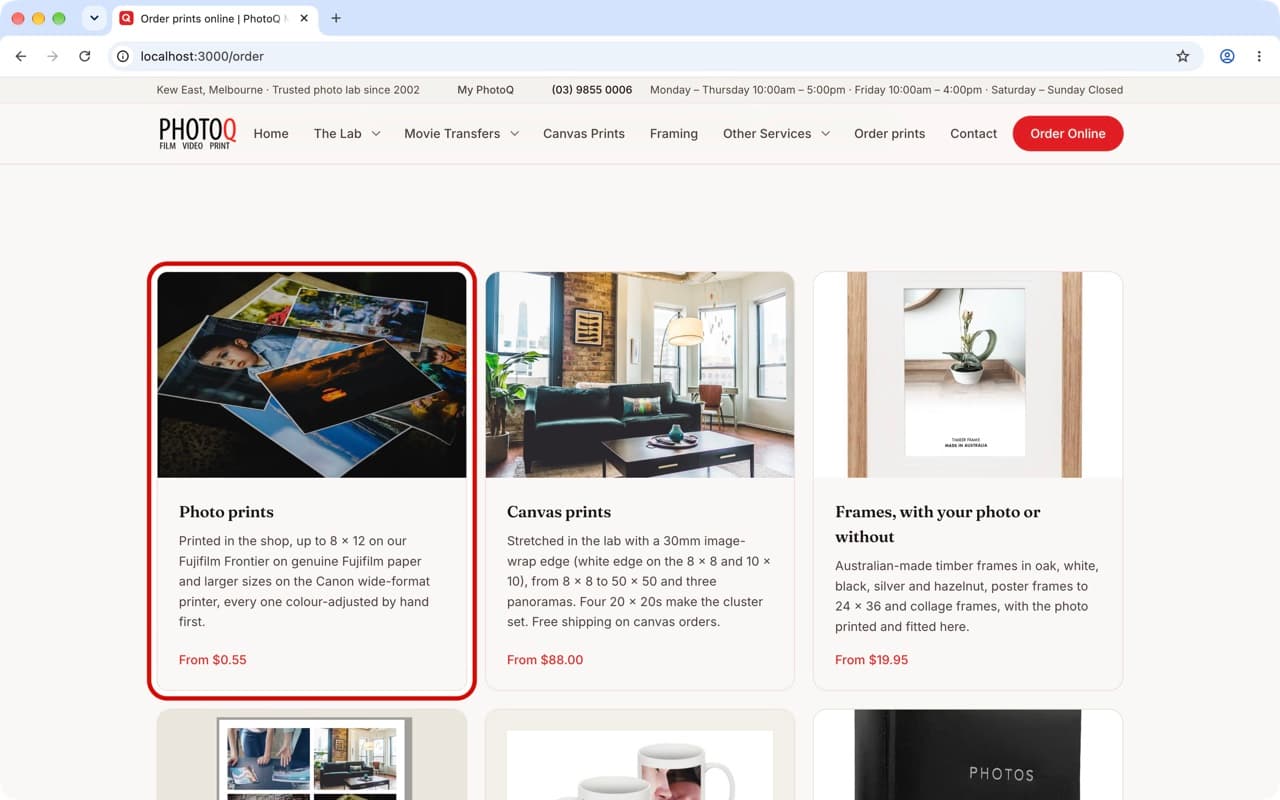
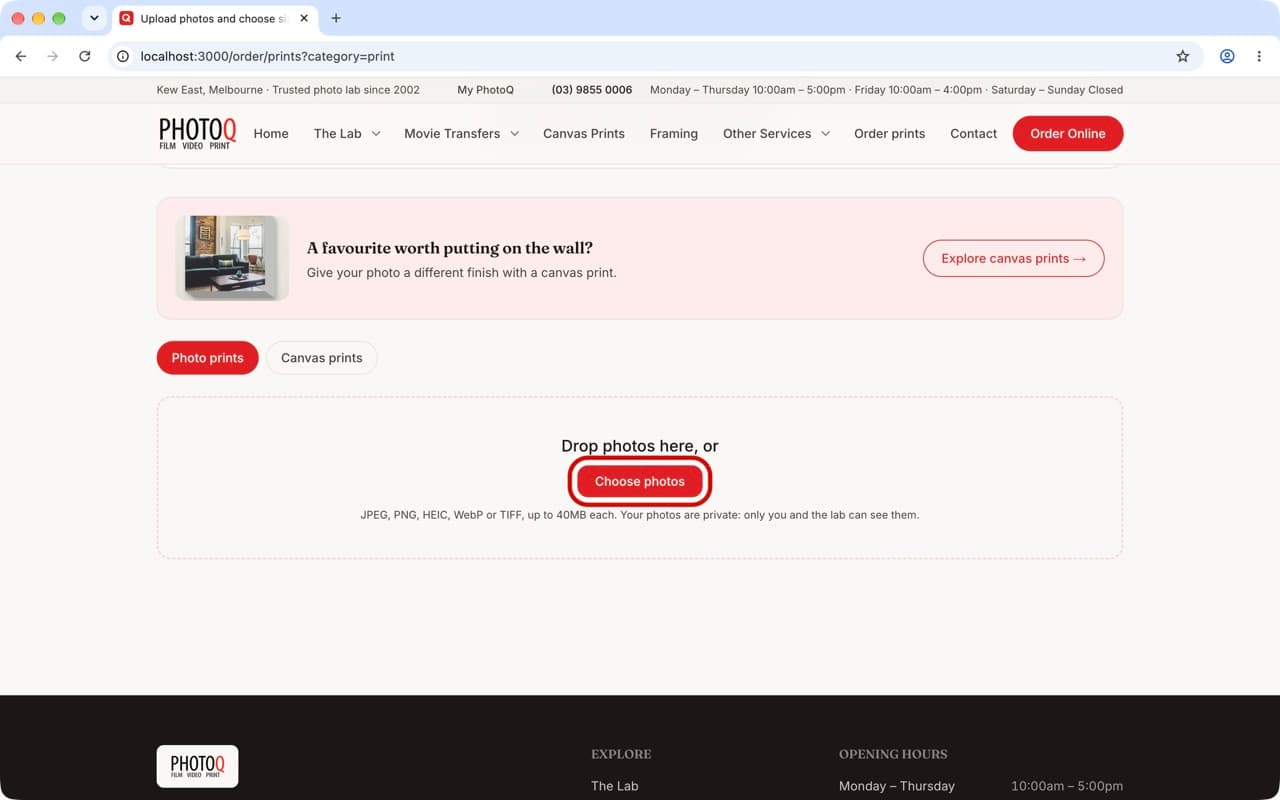
Step 2: click Choose photos
You will see a box that says “Drop photos here, or” with a red button under it.
- Click the red “Choose photos” button.
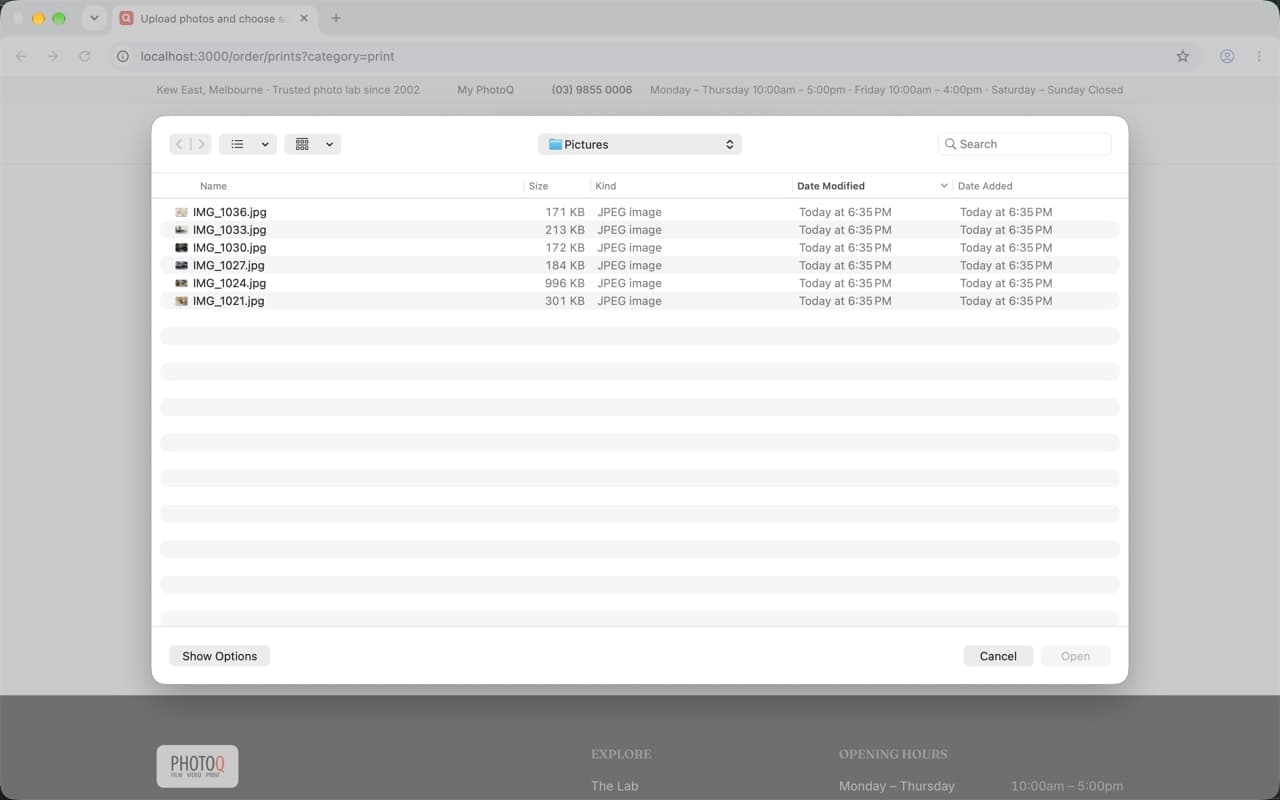
Step 3: find the folder with the photos
A window opens showing your folders and files. This is your computer's usual file window, not part of our website.
- On a Mac, click “Pictures” on the left, or use the folder menu at the top of the window to get to where the photos are.
- On Windows, click “Pictures” on the left, or “This PC” and then the folder the photos are in.
- If you only see names and no pictures, change the view to icons with the buttons near the top of the window.
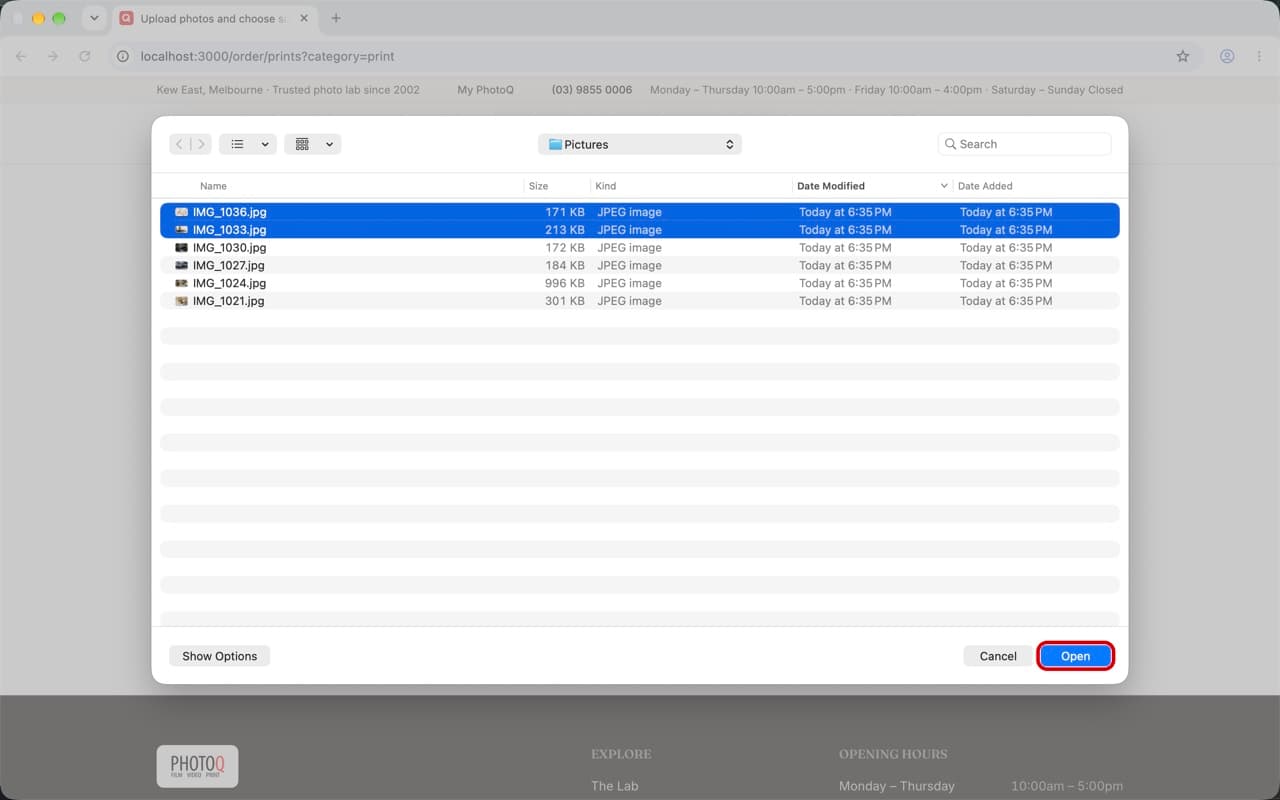
Step 4: choose the photos, several at once
You can pick more than one photo in the same go.
- Click the first photo you want.
- Hold down the Command key on a Mac (Ctrl on Windows) and click each of the others. To pick a whole run, click the first, hold Shift and click the last.
- Click “Open”. Each photo appears on the page as it arrives.
- The other way: open the folder in a second window and drag the photos onto the box that says “Drop photos here”.
Step 5: open the sizes for a photo
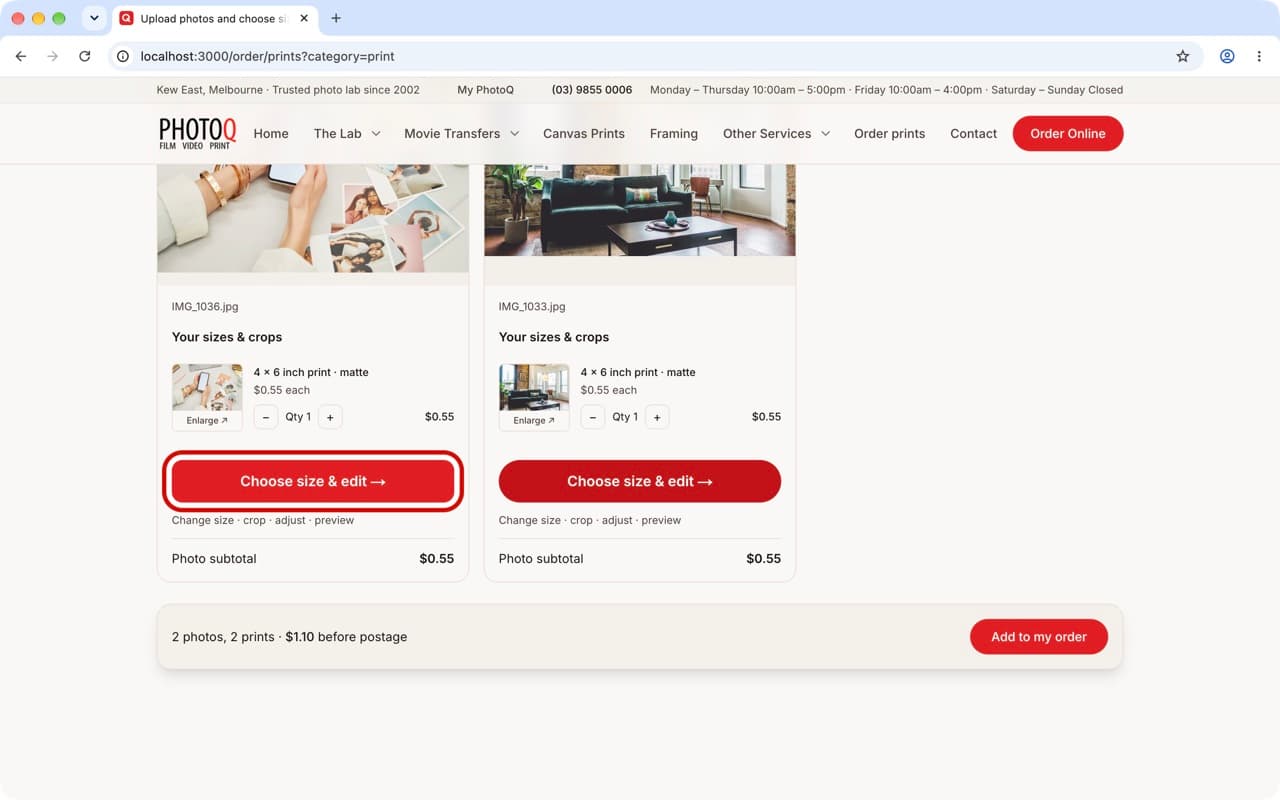
Every photo starts as one 6x4 inch print, the everyday size. To change the size or order more copies:
- Under the photo, click the red “Choose size & edit” button.
Step 6: choose the size and how many
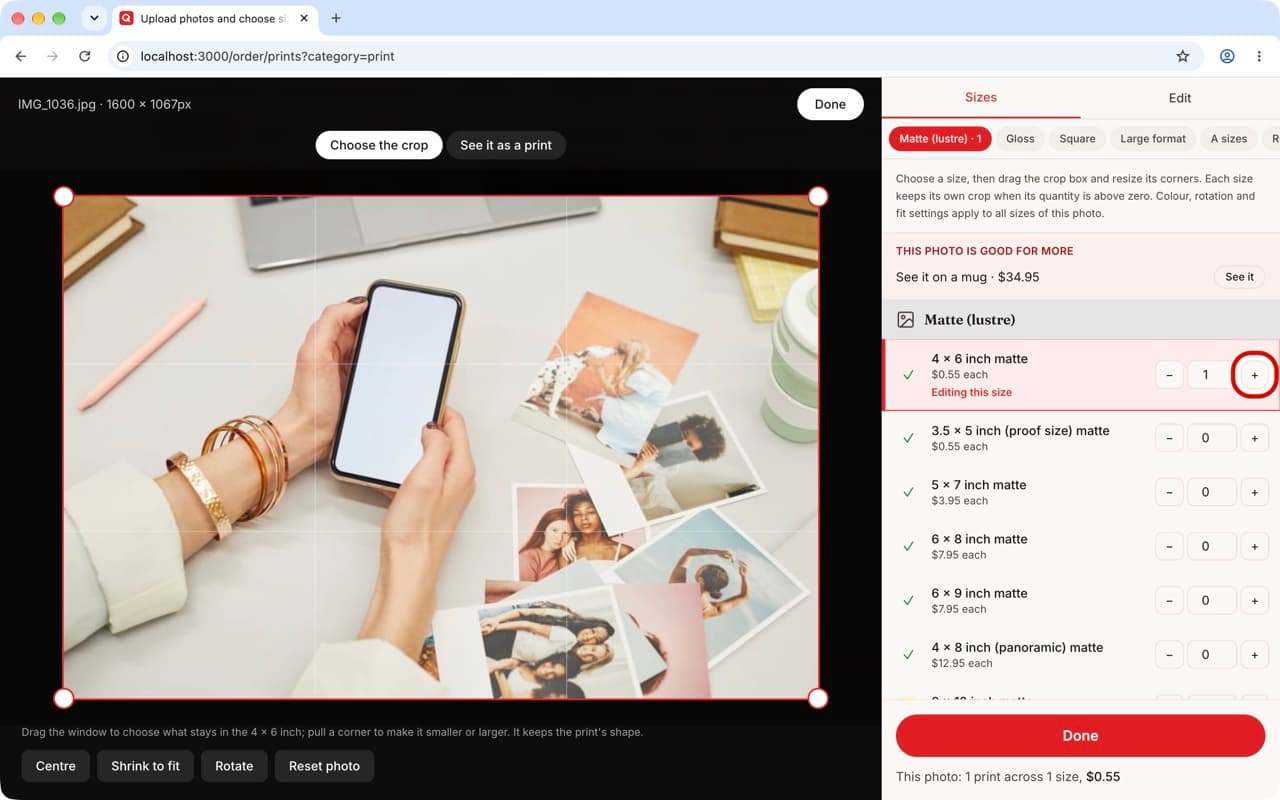
The sizes are listed on the right, with the price under each one, and your photo with its crop on the left.
- Click “+” next to a size for one copy. Click it again for two, and so on. Click “−” to take one off.
- You can choose more than one size for the same photo.
Step 7: click Done
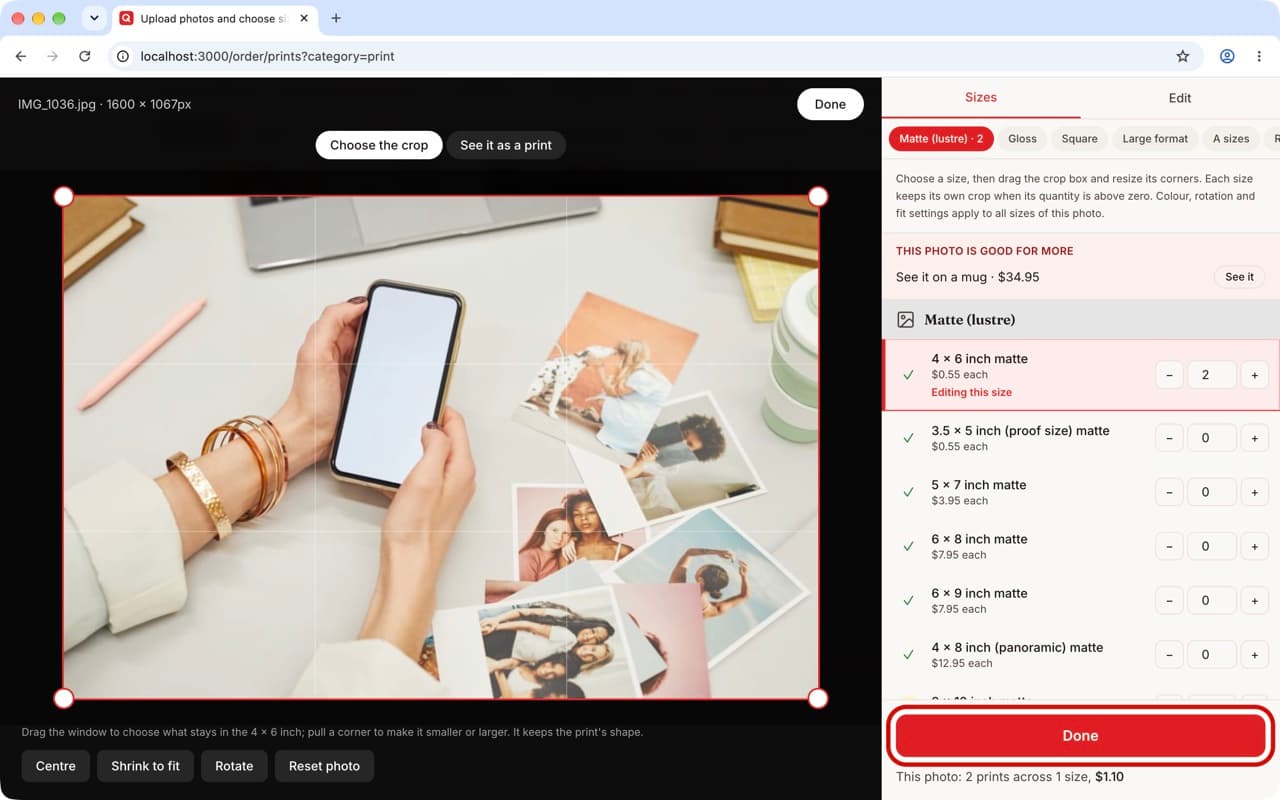
When the sizes and copies are right:
- Click the red “Done” button.
- Do the same for each photo, or leave the others as 6 x 4s.
Step 8: add them to your cart
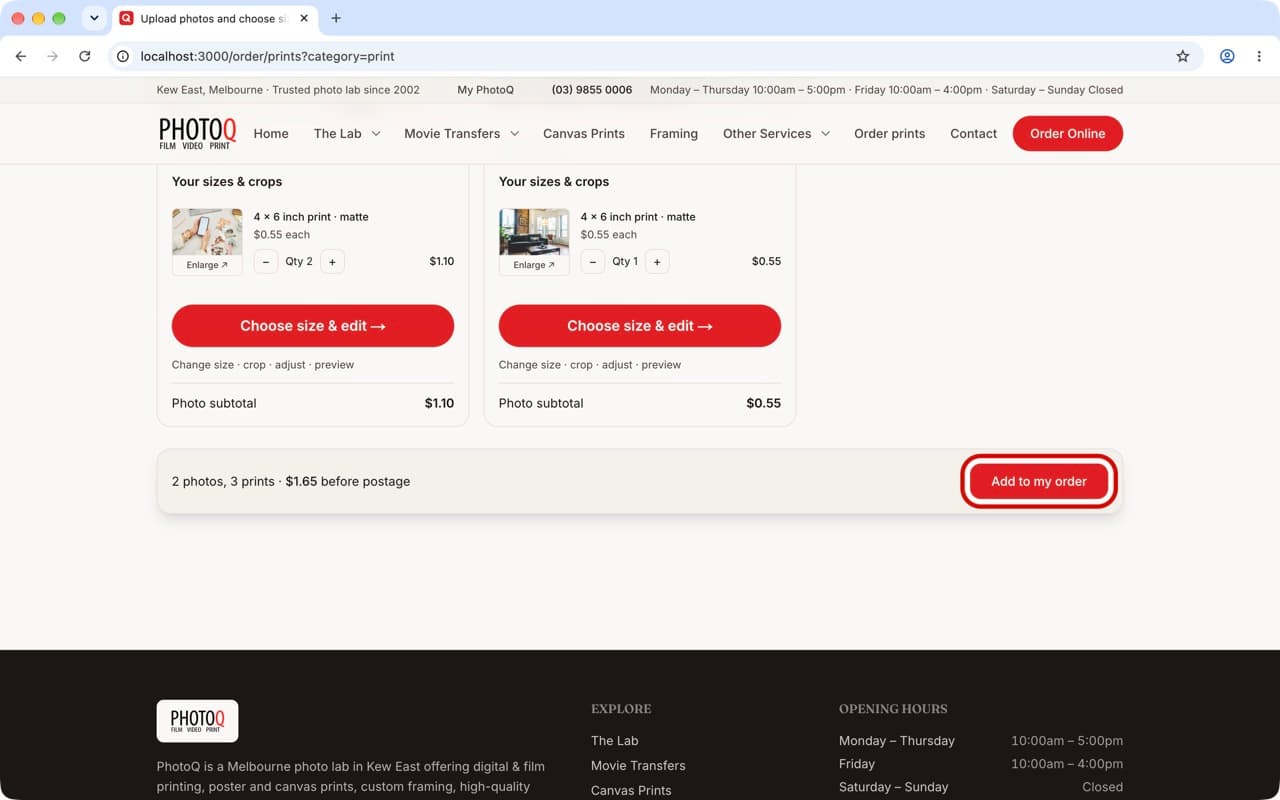
A grey bar shows how many prints you have and the price before postage.
- Click “Add to cart”.
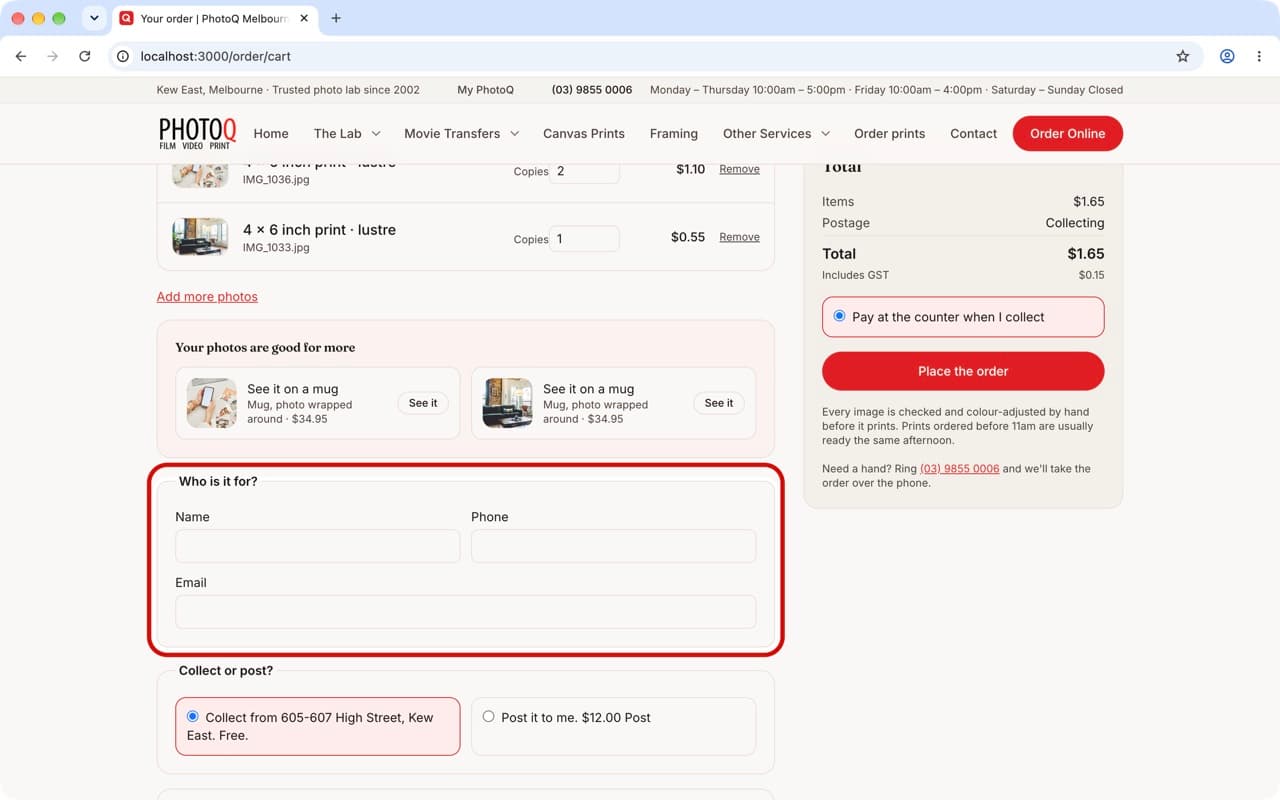
Step 9: tell us who you are
The order page opens and lists your prints. Under “Customer Details”:
- Type your name.
- Type a phone number, in case we have a question about a photo.
- Type an email address. The confirmation goes there.
Step 10: collect or post
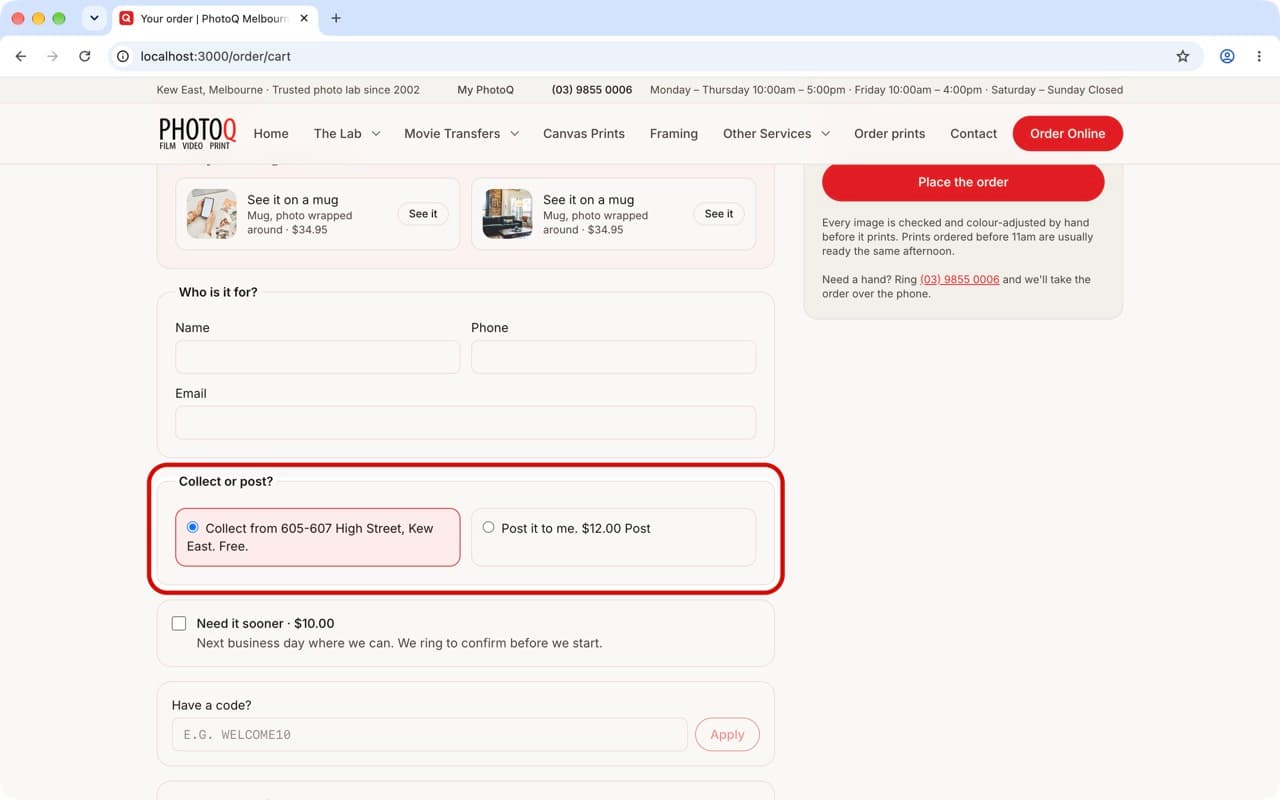
Under “Collect or post?” choose how you would like them.
- Click “Collect from 605-607 High Street” to pick them up from the shop. It is free.
- Or click “Post it to me” and type your address. The postage price is shown before you decide.
Step 11: place the order
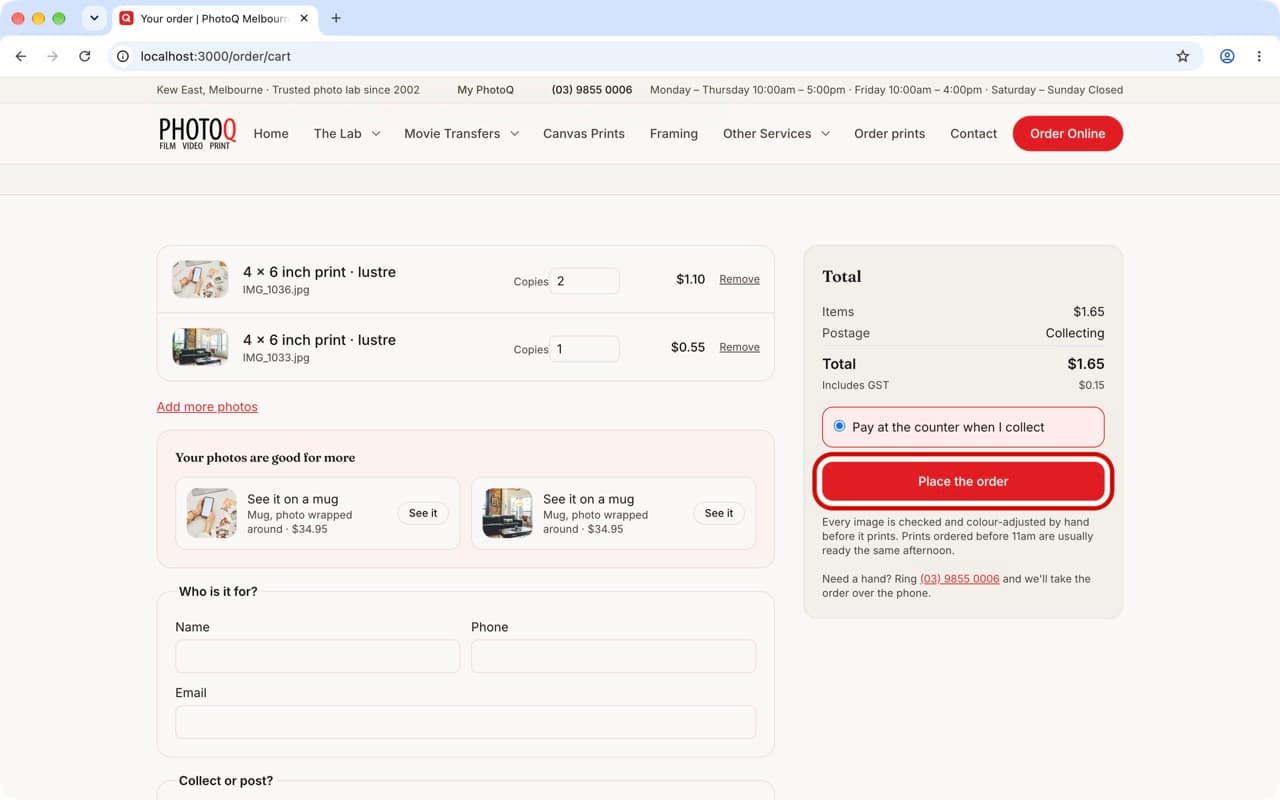
Under the total:
- Choose “Pay with PayPal or Credit Card” (you do not need a PayPal account) and PayPal's page opens next; the order is placed once the payment goes through.
- Click “Place the order” (it says “Continue to payment” if you chose to pay now).
- You will see your order number, and an email arrives straight away. That is it.
Things people ask us
Which files can I send? JPEG, PNG, HEIC (the iPhone kind), WebP and TIFF, up to 40 MB each. Nearly every photo from a phone or camera is one of these.
It says the photo is small for the size. It will still print, but it may look soft at that size. Choose a smaller size, or bring the original in and we will look at it.
My screen looks a little different. Browsers and file windows change with each update, but the words on the buttons stay the same. Follow the words.
Would you rather bring the computer, the card or the USB stick in? Get it all together first, then bring it in any time, or ring (03) 9855 0006 to check we are in. See “Get everything together, then bring it in” below.
Ready to try?
Order online
Upload the photos, choose the sizes, and we print them here in Kew East. No account needed.
Start ordering →Or let us do it
Bring it in and we do it with you
605-607 High Street, Kew East. Monday – Thursday 10:00am – 5:00pm. Friday 10:00am – 4:00pm. Saturday – Sunday Closed.
Ring (03) 9855 0006 and we will talk you through it.
How that works →