
Help
Get photos off your phone and printed
The photos are on your phone. This page shows how to pick them and send them to us, one step at a time, with a picture of every screen from a real iPhone and a real Android phone. It takes about five minutes the first time.
Before you start
You do not need an account, a password or an app. You only need your phone and the internet (your home Wi-Fi is fine).
“Upload” is the word for sending a photo from your phone to us. Nothing leaves your phone; a copy is sent, and only you and the lab can see it.
If you get stuck at any step, ring us on (03) 9855 0006 and we will walk you through it, or bring the phone in and we will do it with you.
Which phone do you have?
The pictures below change to match it.
Watch it done first
This is the whole thing on a real phone, start to finish, in about two minutes. Each step is written on the screen as it happens. There is no sound. Press the play button in the middle of the picture to start, and press it again if you want to pause.
Choose your kind of phone first, so the pictures on this page match yours. If you are not sure, it is an iPhone if it has an apple on the back.
Step 1: open the order page
Open the internet on your phone (Safari on an iPhone, Chrome on most Android phones). Then:
- In the bar at the top of the screen (at the bottom on a newer iPhone), type photoq.com.au/order and press “Go” (or the arrow).
- You will see the order page with pictures of what we make. Press the first one, “Photo prints”.
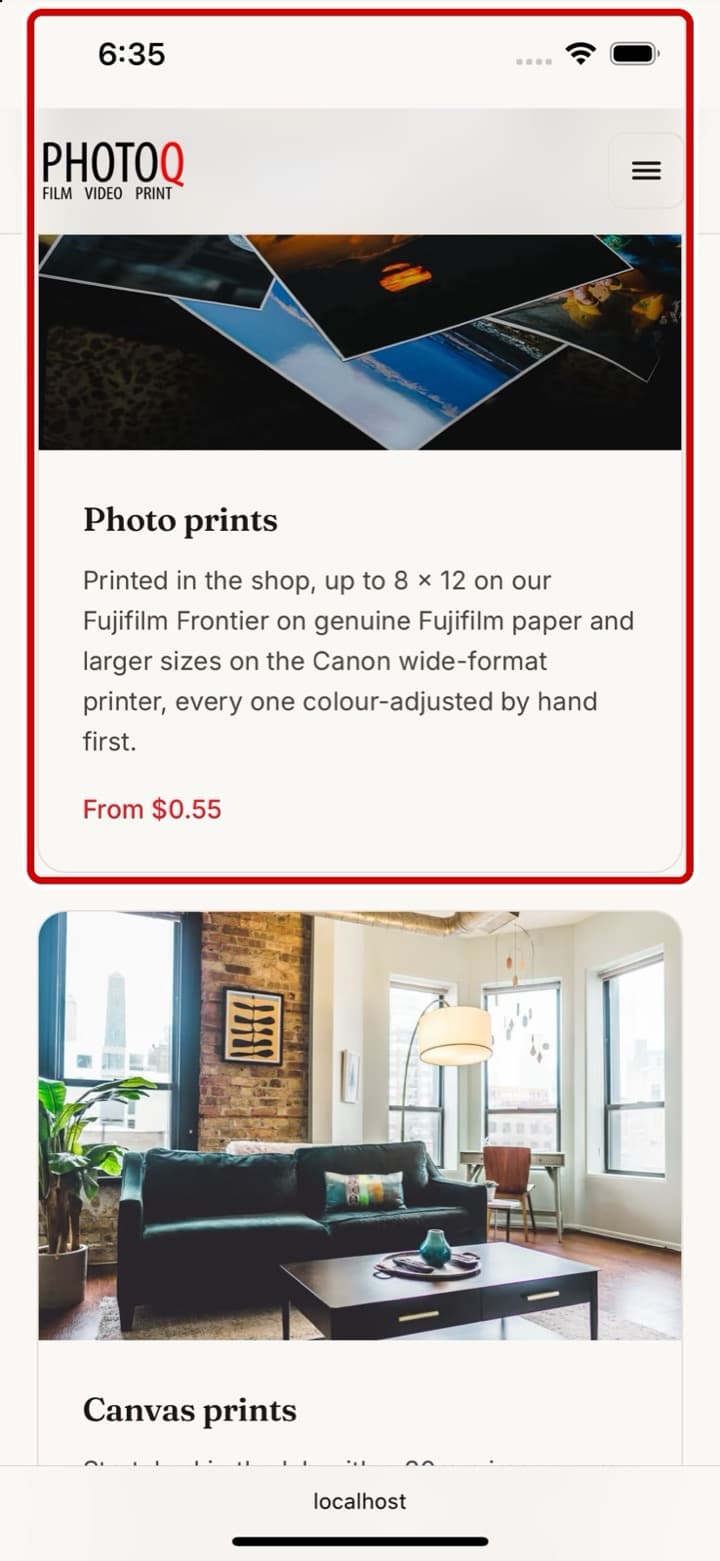
Step 2: press Choose photos
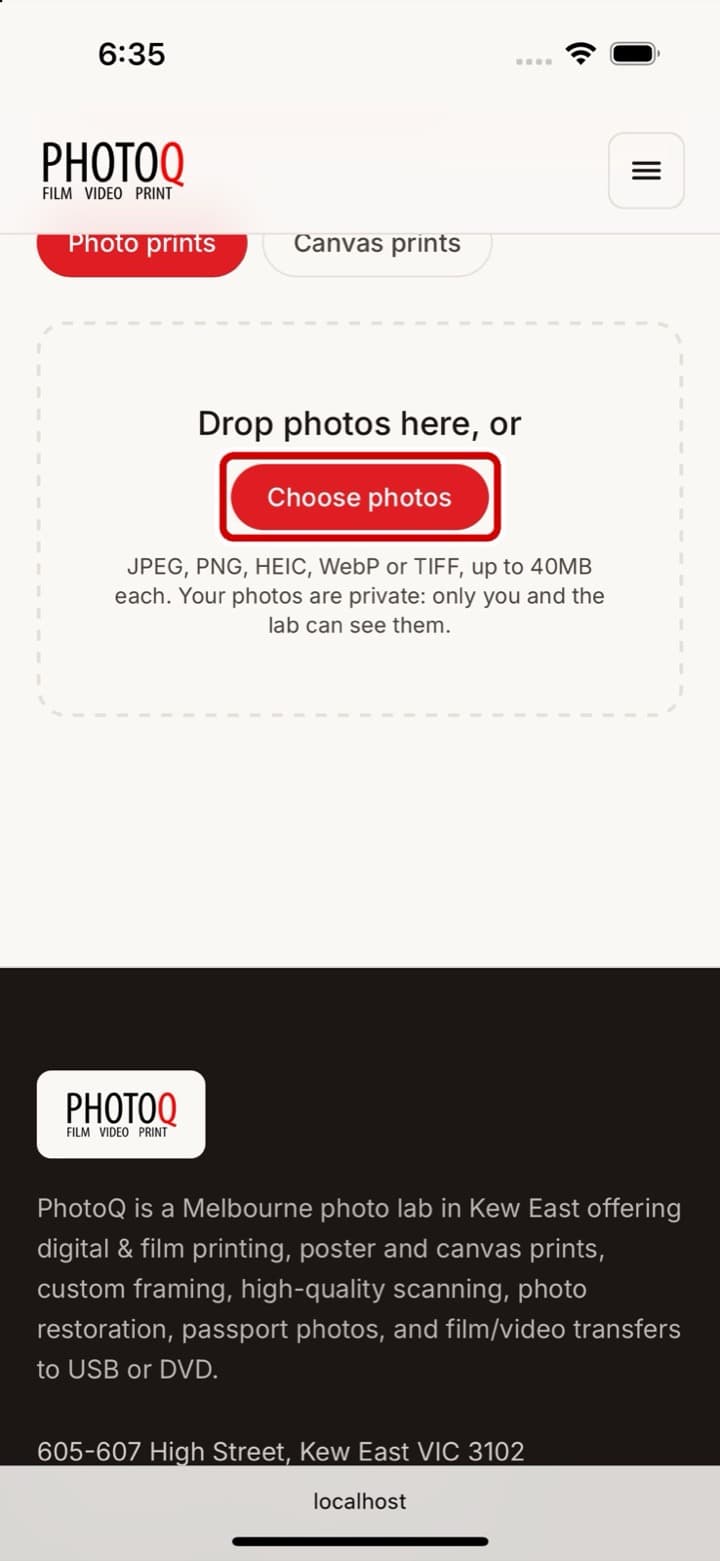
You will see a box that says “Drop photos here, or” with a red button under it.
- Press the red “Choose photos” button.
Step 3: open your photos
What happens next depends on the phone.
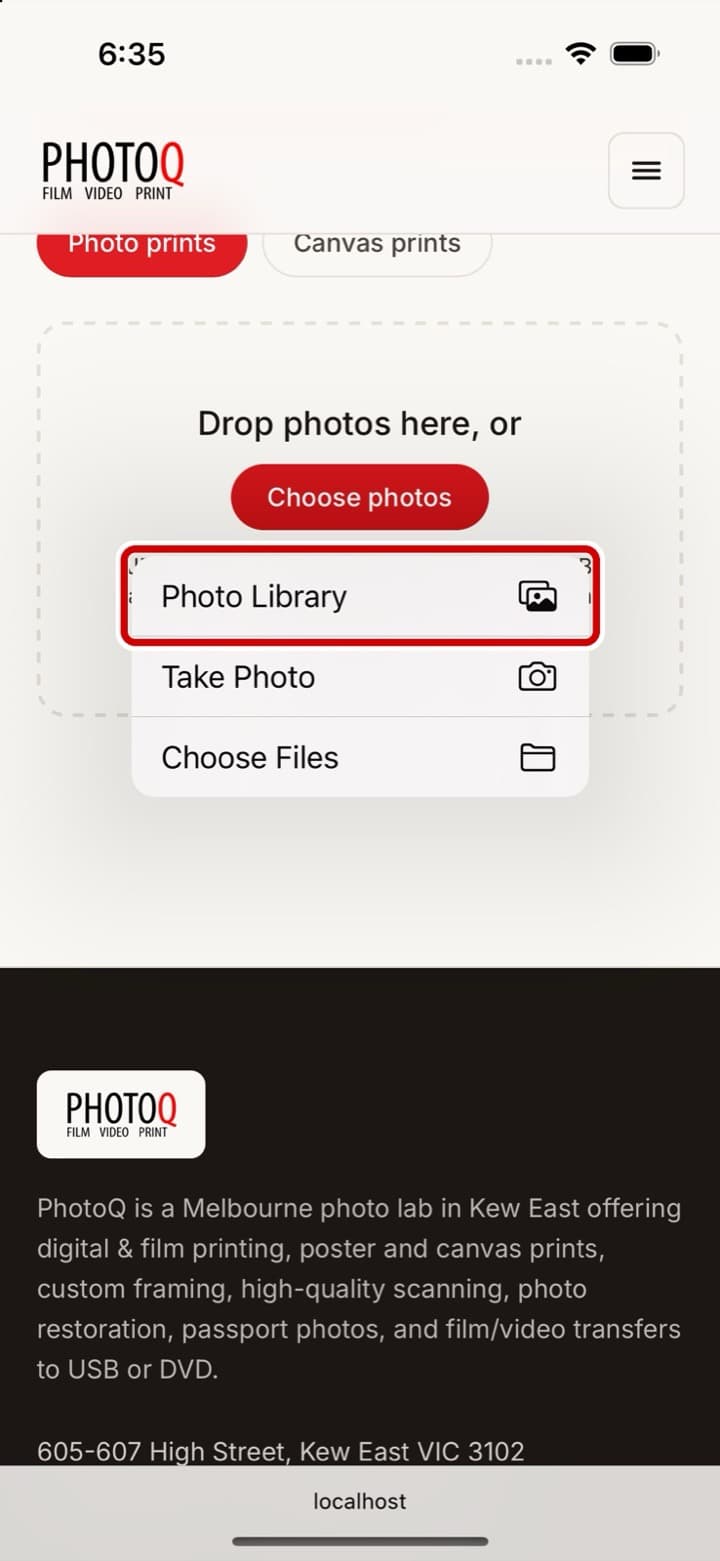
- On an iPhone, a small menu pops up. Press “Photo Library”.
- On an Android phone, your photos appear straight away, newest first. You may see a note that Chrome can only see the photos you choose; press “Dismiss” or just carry on.
Step 4: tap the photos you want
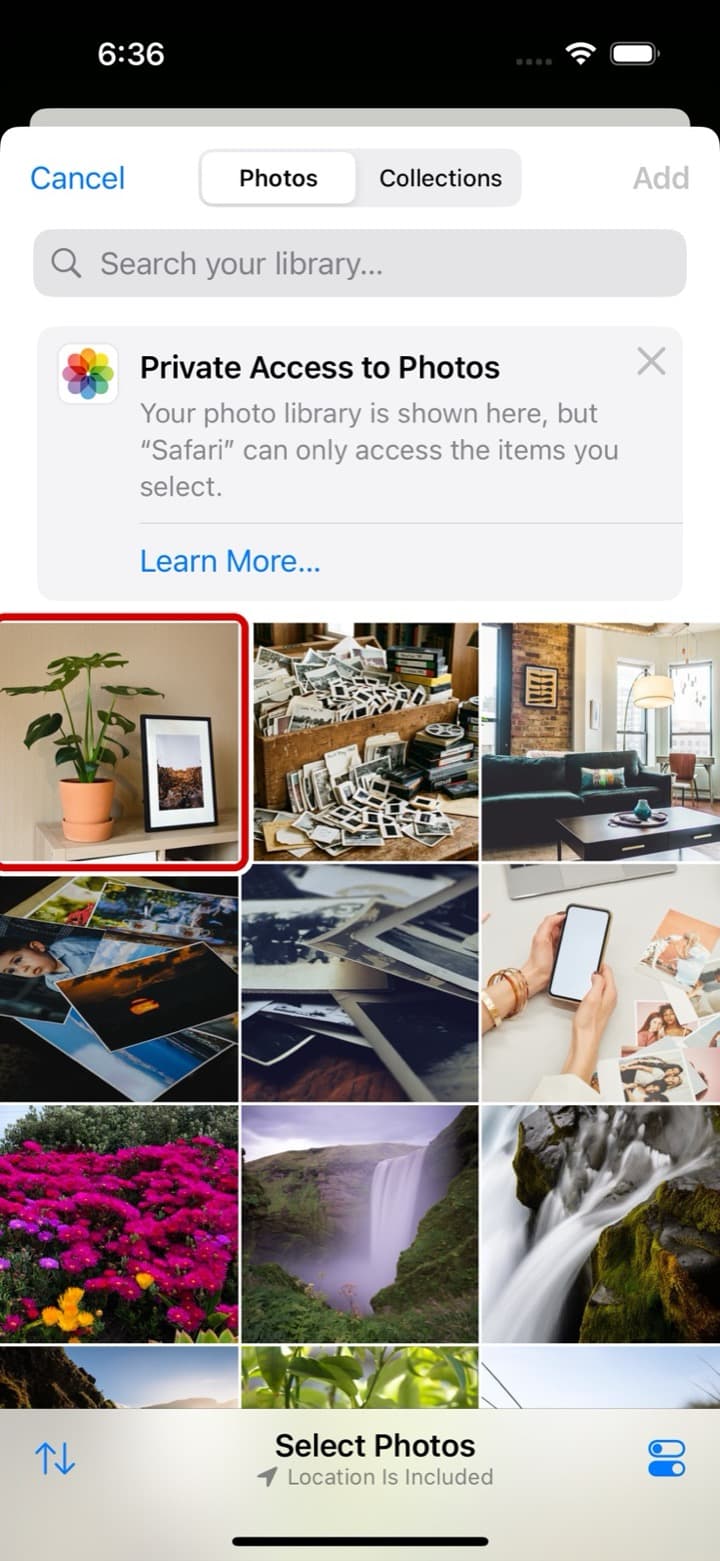
Your photos are shown as small squares, newest first.
- Tap each photo you want printed. A tick appears on it. Tap it again to take the tick off.
- You can choose as many as you like. Scroll down to see older ones.
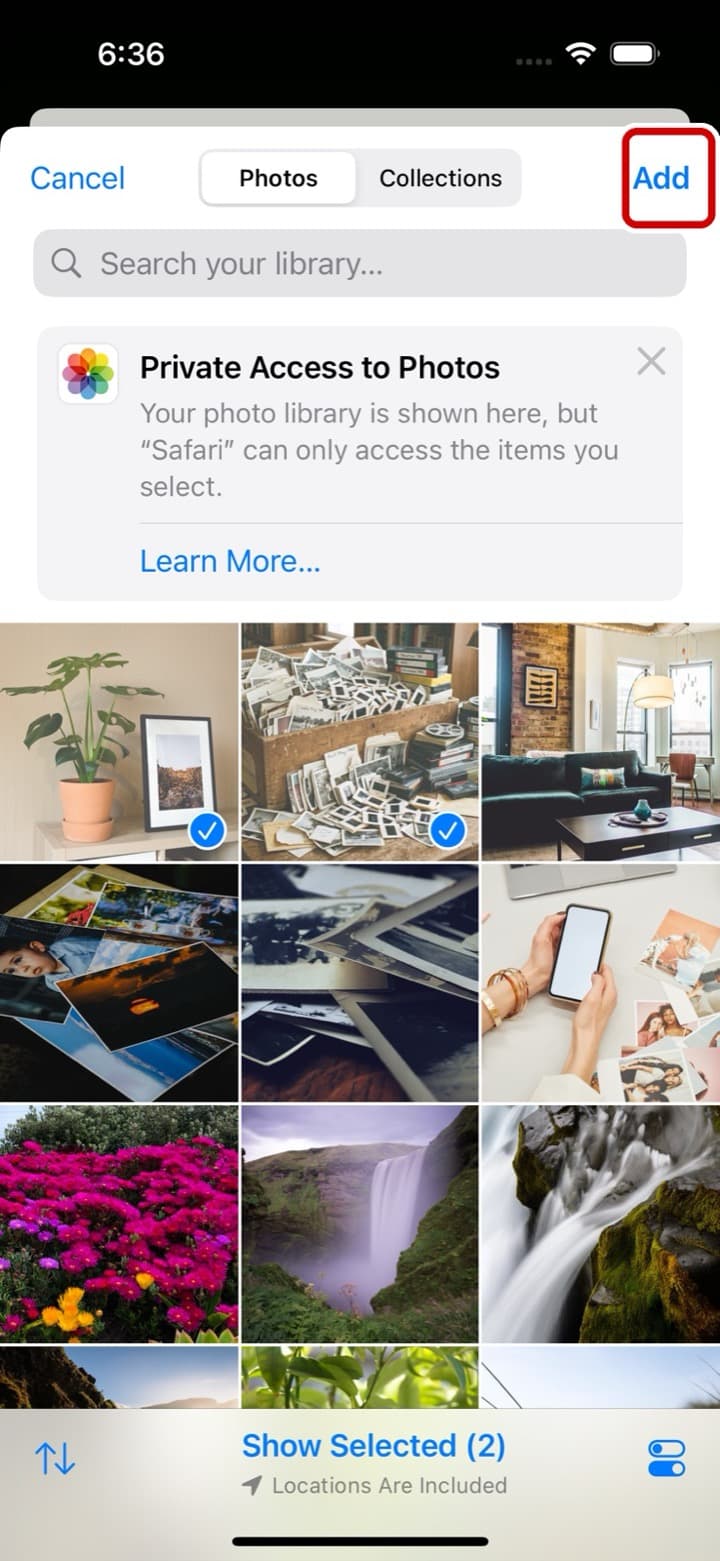
Step 5: finish choosing
When every photo you want has a tick:
- On an iPhone, press the tick in the circle at the top right of the screen.
- On an Android phone, press “Done” at the bottom right.
- Wait a moment while the photos are sent. Each one appears on the page when it has arrived.
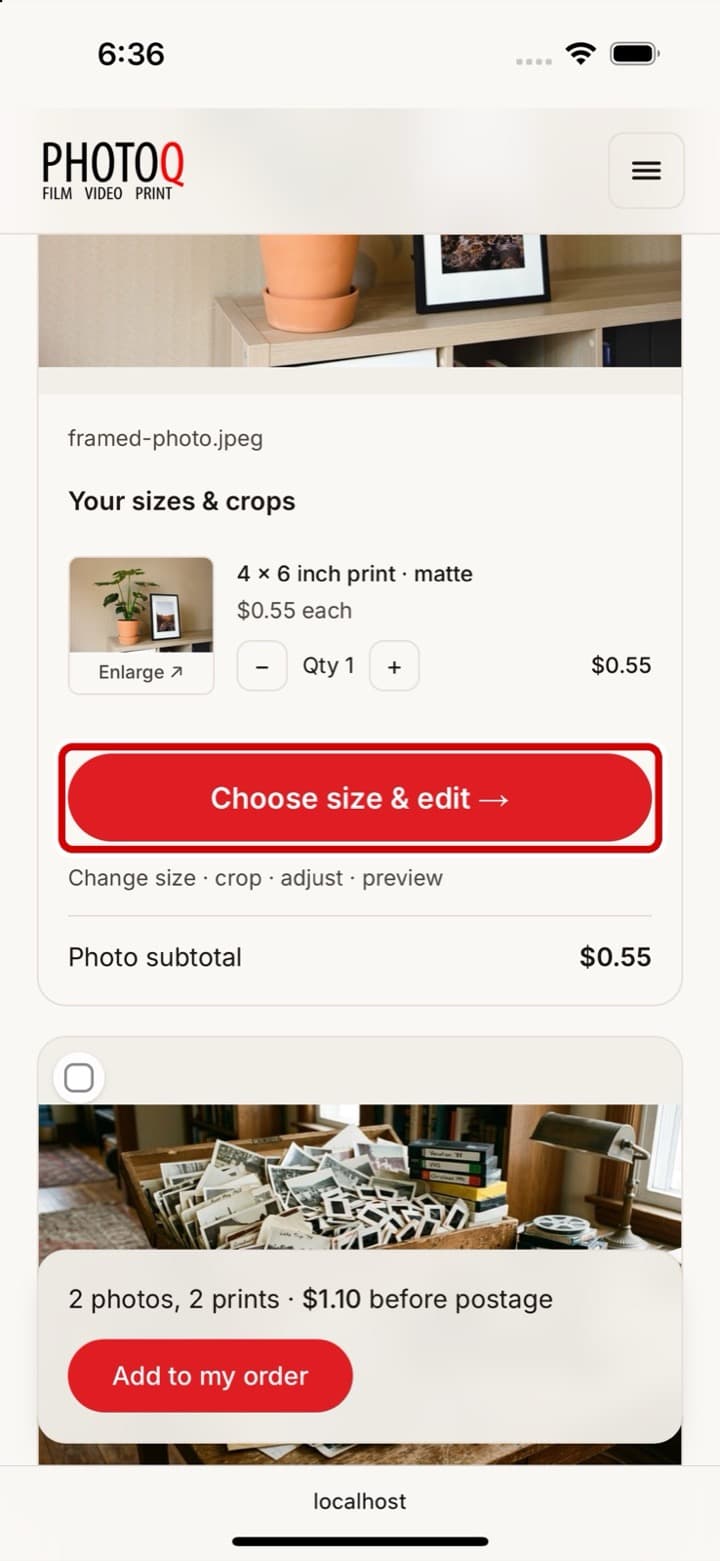
Step 6: open the sizes for a photo
Every photo starts as one 6x4 inch print, the everyday size. To change the size or order more copies:
- Under the photo, press the red “Choose size & edit” button.
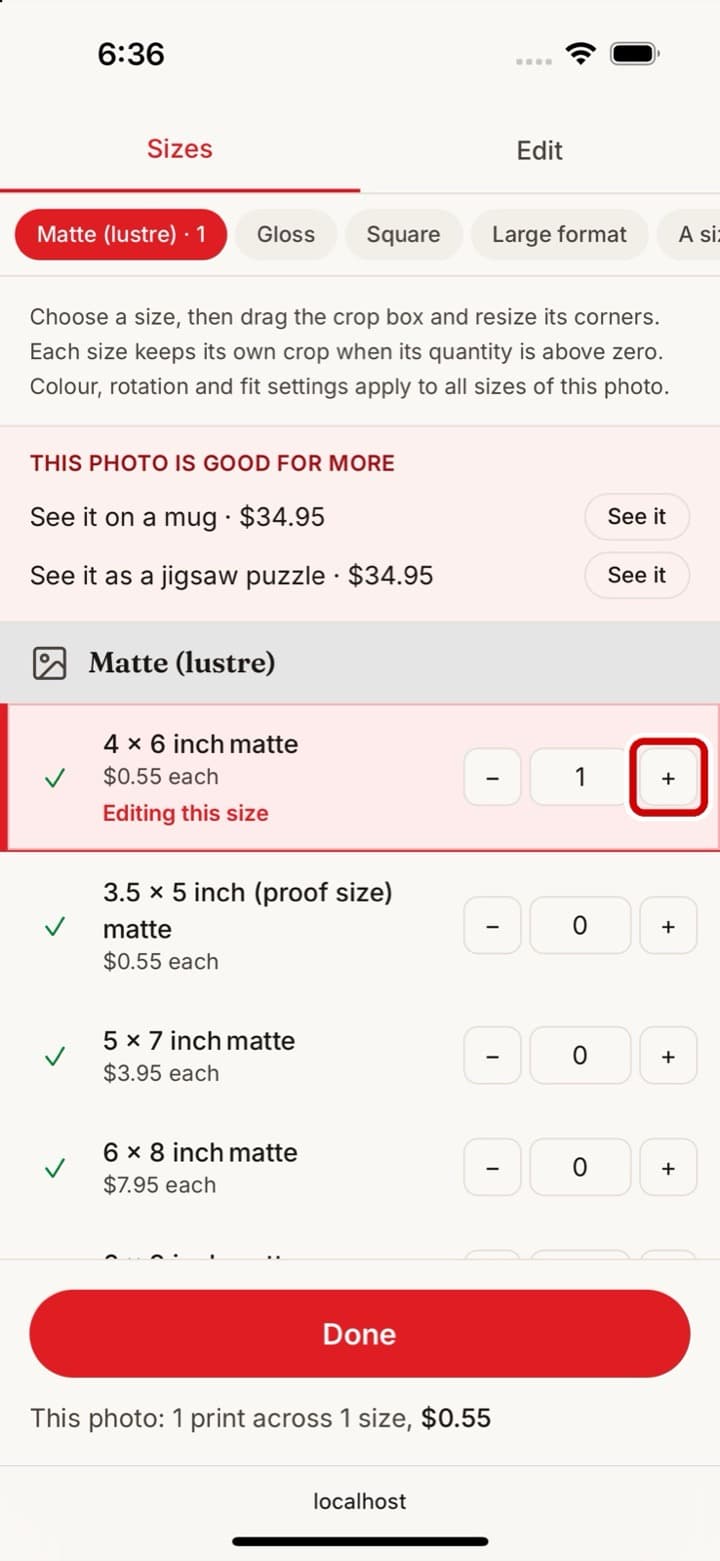
Step 7: choose the size and how many
A list of sizes appears, with the price under each one.
- Press “+” next to a size for one copy. Press it again for two, and so on. Press “−” to take one off.
- You can choose more than one size for the same photo.
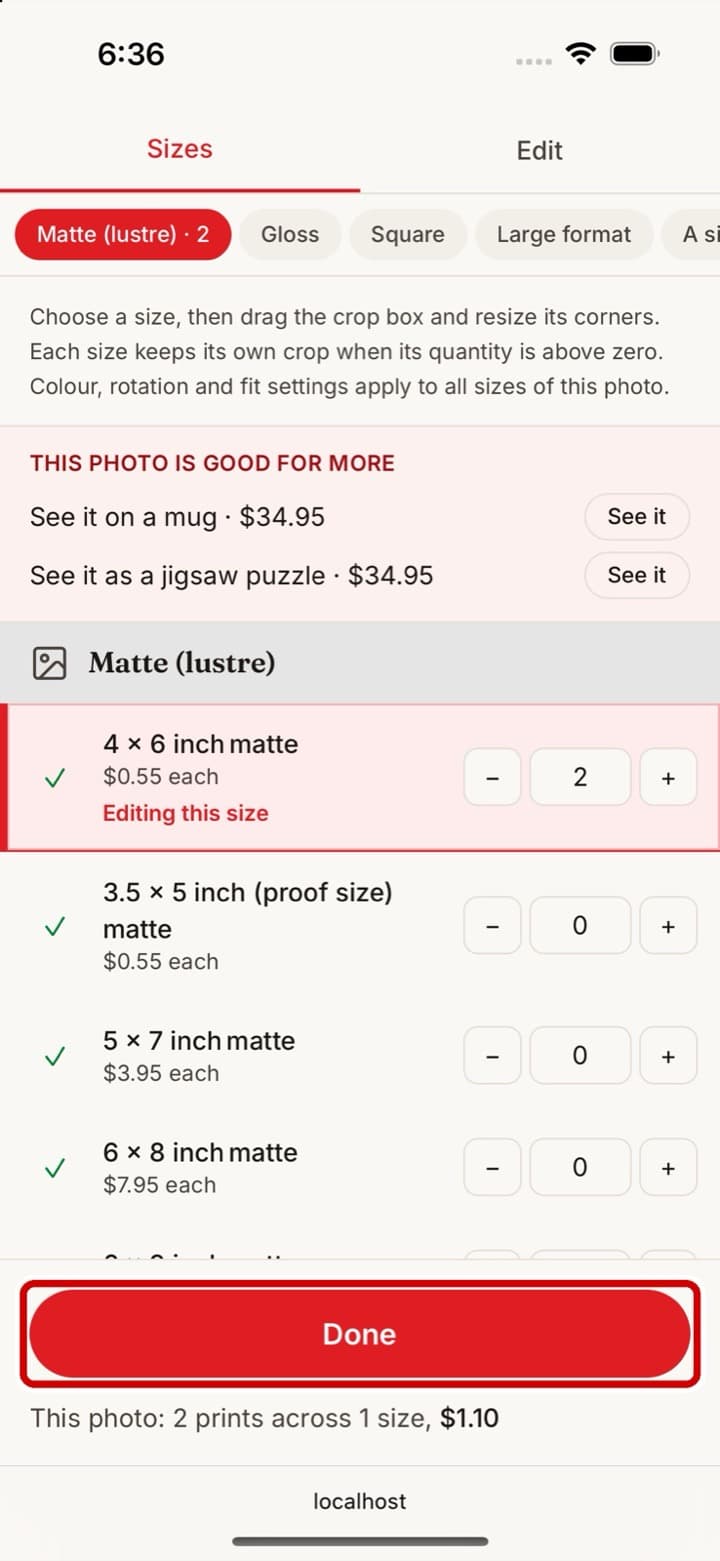
Step 8: press Done
When the sizes and copies are right:
- Press the red “Done” button at the bottom of the screen.
- Do the same for each photo, or leave the others as 6 x 4s.
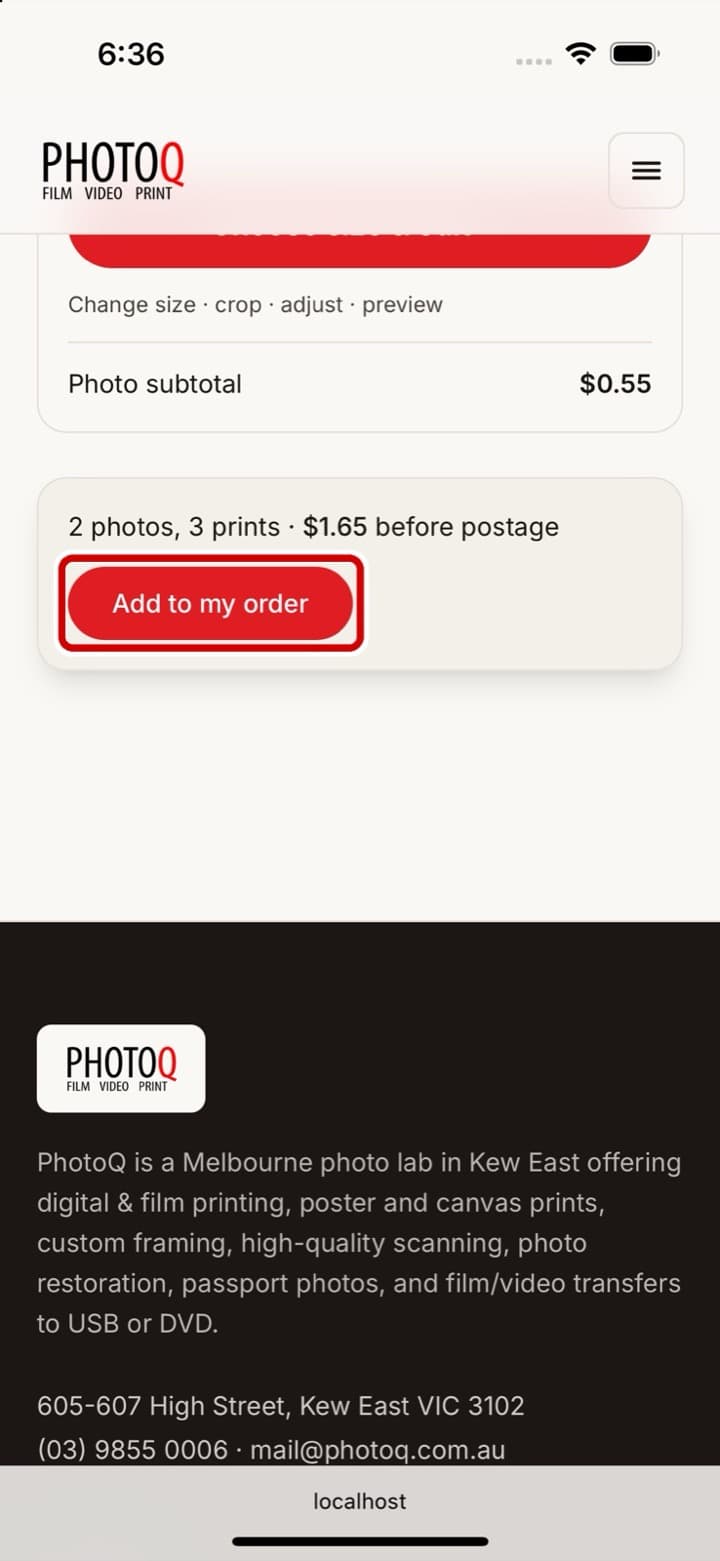
Step 9: add them to your cart
A grey bar shows how many prints you have and the price before postage.
- Press “Add to cart”.
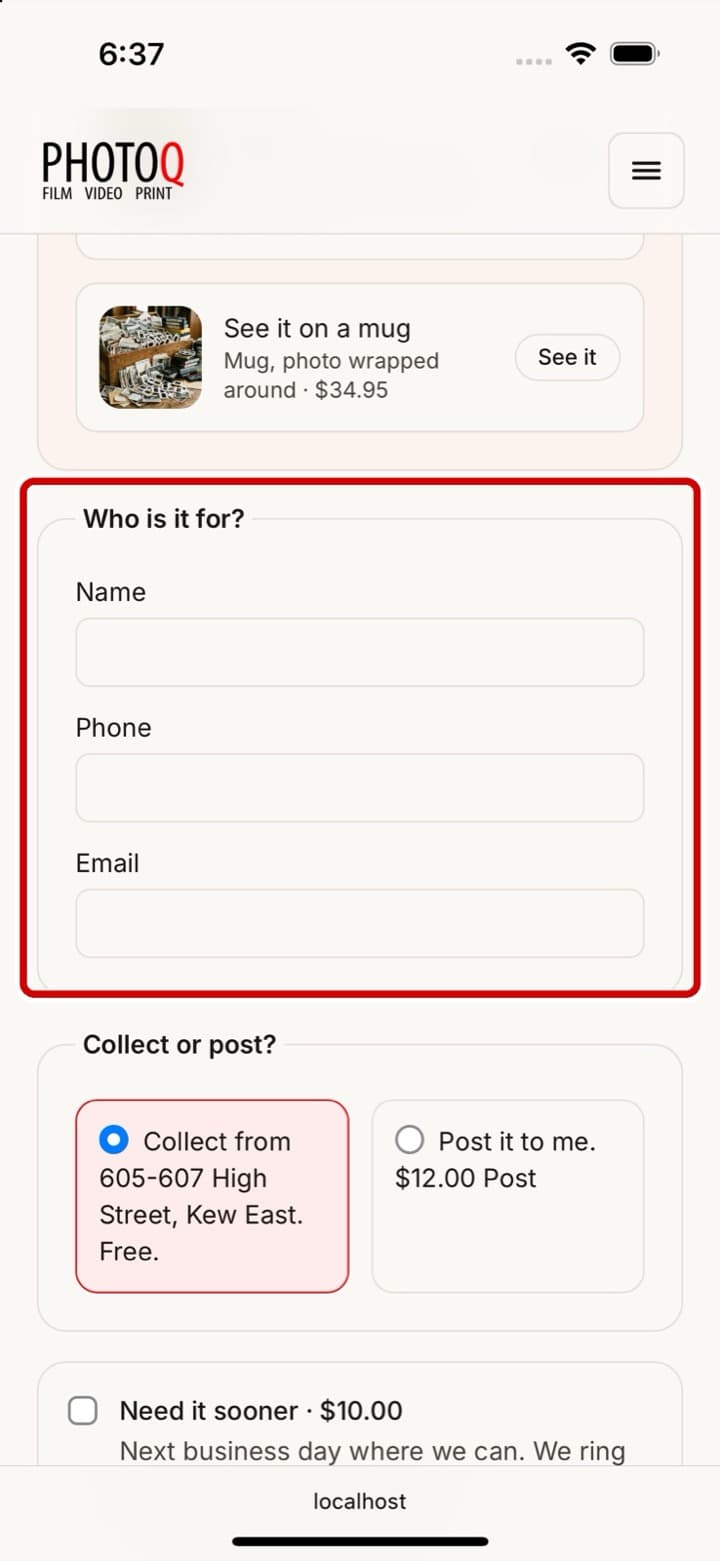
Step 10: tell us who you are
The order page opens and lists your prints. Under “Customer Details”:
- Type your name.
- Type a phone number, in case we have a question about a photo.
- Type an email address. The confirmation goes there.
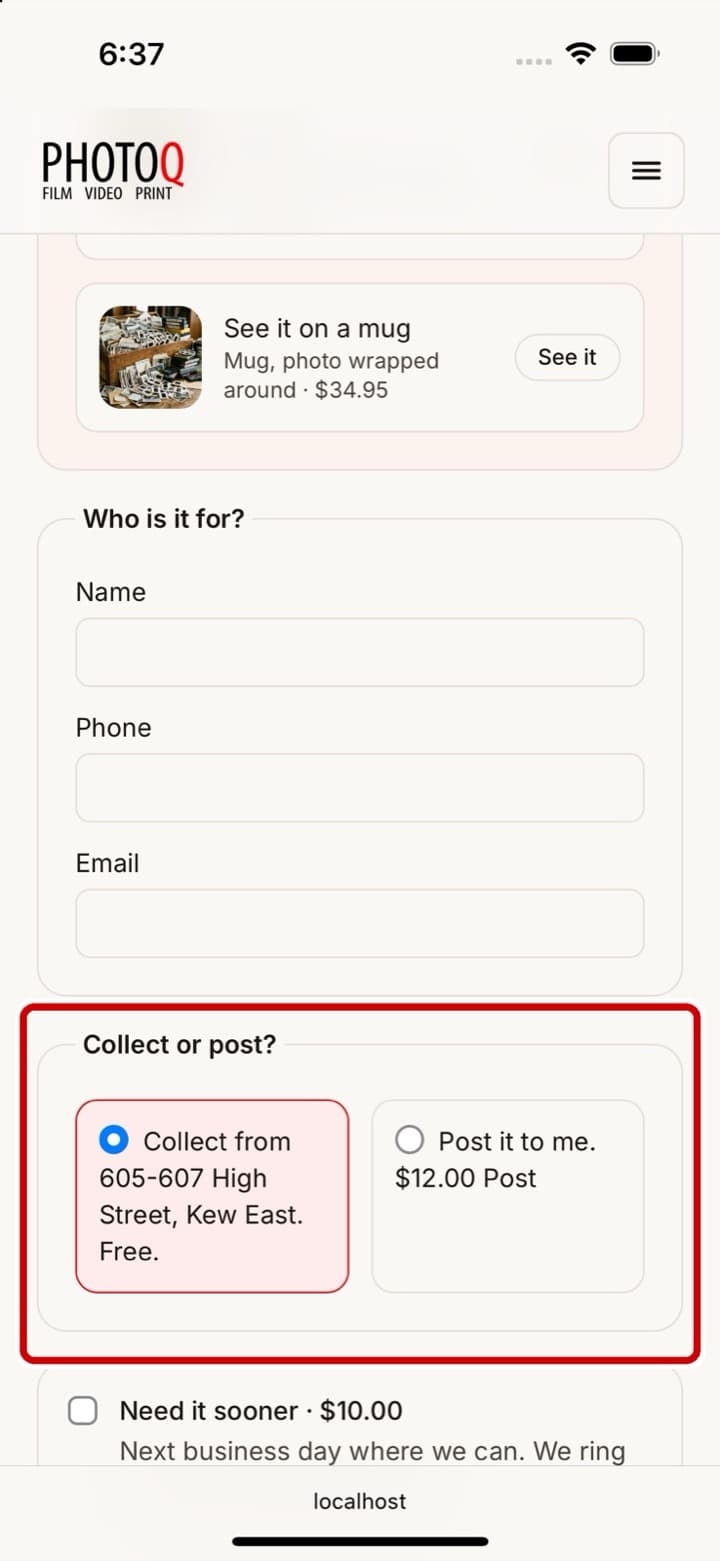
Step 11: collect or post
Under “Collect or post?” choose how you would like them.
- Press “Collect from 605-607 High Street” to pick them up from the shop. It is free.
- Or press “Post it to me” and type your address. The postage price is shown before you decide.
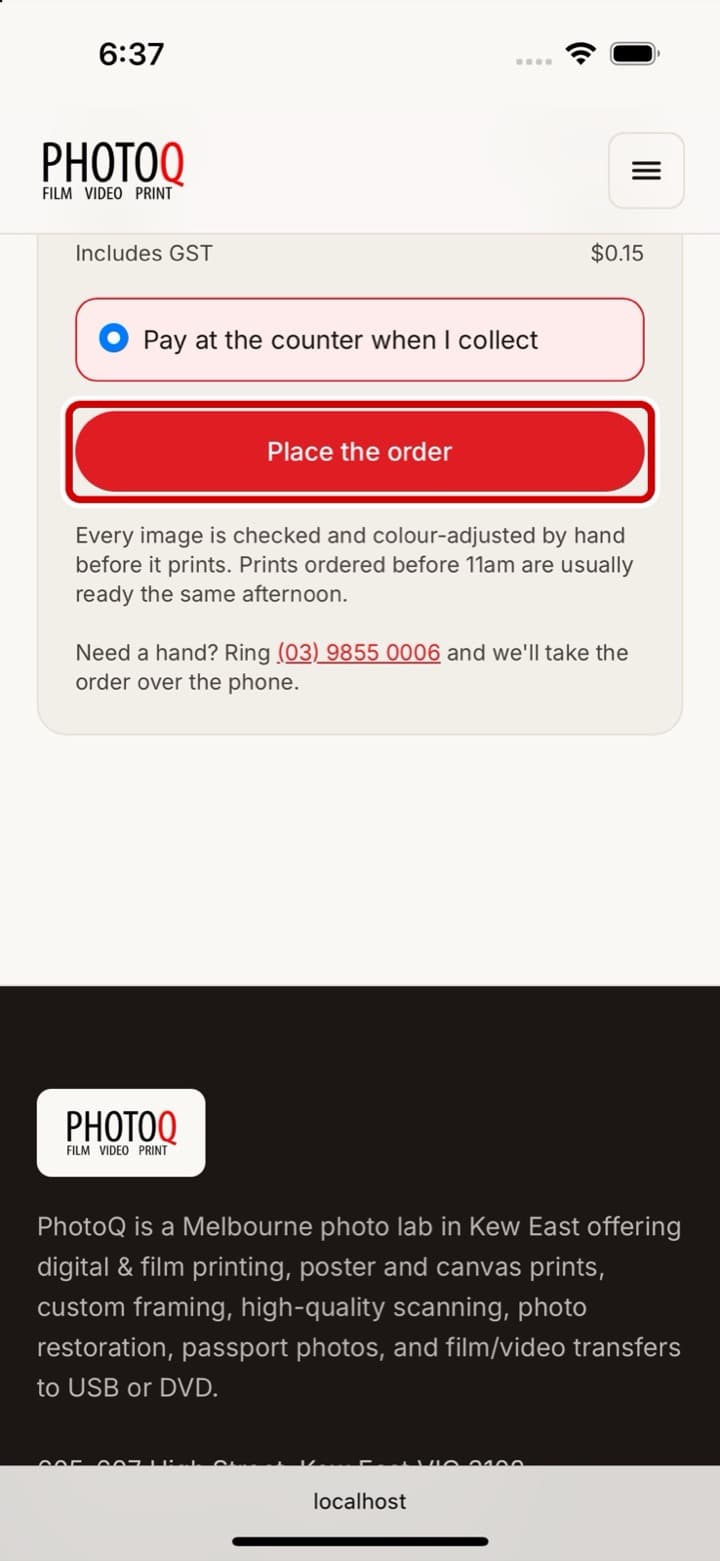
Step 12: place the order
Near the bottom, under the total:
- Choose “Pay with PayPal or Credit Card” (you do not need a PayPal account) and PayPal's page opens next; the order is placed once the payment goes through.
- Press “Place the order” (it says “Continue to payment” if you chose to pay now).
- You will see your order number, and an email arrives straight away. That is it.
Things people ask us
How do I know it worked? You get an email with an order number within a few minutes. If it does not come, check the junk folder, or ring us with your name and we will look.
What if the photo says it will look soft? The photo is small for that size. It will still print, but choose a smaller size if you want it sharp. The page tells you before you pay.
Can I order lots of photos? Yes. You can choose up to 100 photos at a time and add more after.
Will my photos be safe? Only you and the lab can see them, and they are deleted from our servers 90 days after the order is done.
My screen looks a little different. Phones change with each update, but the words on the buttons stay the same. Follow the words.
I cannot do this. That is fine. Get your phone and charger together, then see “Get everything together, then bring it in” below.
Ready to try?
Order online
Upload the photos, choose the sizes, and we print them here in Kew East. No account needed.
Start ordering →Or let us do it
Bring it in and we do it with you
605-607 High Street, Kew East. Monday – Thursday 10:00am – 5:00pm. Friday 10:00am – 4:00pm. Saturday – Sunday Closed.
Ring (03) 9855 0006 and we will talk you through it.
How that works →